Editing Quick Fixes

Written by Justin Sieger
Updated at August 28th, 2026
Normal View vs. Page View
If you notice that when Editing a job that the text is single spaced, there's no headers or footers, there is a dotted line between pages, and there's musical notes on the page, you're most likely in Normal View. To fix this, click on View, Page View (Alt-v, p).

Missing Line Numbers
Sometimes while editing a transcript, you'll notice that the line numbers disappear at an odd spot. For example, on page 3 line 19, in the middle of Q & A, the line numbers just disappear and they disappear for the rest of the transcript.

What commonly happens is a Line Number Off format symbol was inserted into the transcript and removed the line numbers. The solution is to simply remove the Line Number Off format symbol from the Reveal Codes.
NOTE: These steps also work with other format symbols like <Single Space On>, <Bold On>, <Underline On>, etc. Simply delete the format symbol in the Reveal Codes.
Place your cursor above the line where the line numbers disappeared. Using our previous example, if the line numbers disappears on page 3 line 19, place the cursor on line 18.
Click View, Panes, Reveal Codes (Ctrl-Shift-r) to open the Reveal Codes pane.
-
Locate the format symbol <Line Number Off>. Left click on the format symbol to highlight it and then press the Delete key.

Inserting Extended Characters
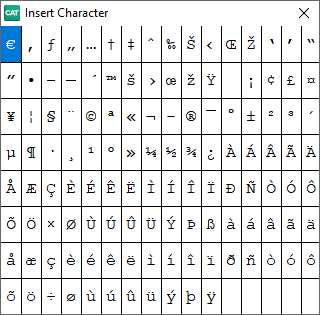
If you need to insert a special character or letter like ü, è, á, ñ. Or money like £, ¥, €, you can insert them by going to Edit, Insert, Extended Characters (Alt-e, i, x).
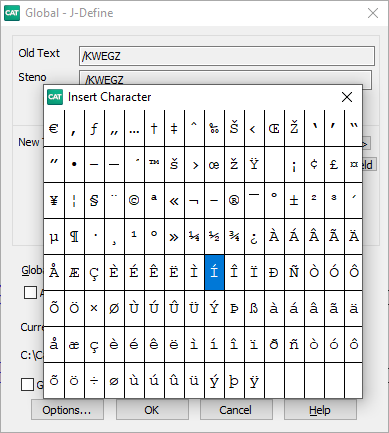
To insert an extended character while globaling, press F9 in the Global dialog box.
Turn Off Conflict View Window
The Conflict View window is small popup window that shows the available conflict choices when the cursor is next to a conflict or if a conflict is stroked during realtime.

If you do not wish to see the Conflict View window, you can turn it off by going to Tools, Options, Advanced Edit. In the Advanced Edit options, under Conflict Choice Options, set the option Display Conflict View Window to No.

Changing Keyboard Maps
If you notice that your keyboard commands aren't doing what they should, like Ctrl-d deletes a word instead of D-define, then you might be in the wrong keyboard map.
At the bottom of the screen, there will be a display that says Kbd Map: After the colon, will be the current keyboard map. If the keyboard map is not one you use, click Tools, Cycle Keyboard Maps (Alt-t, k) or press the backslash (\) key. You can also click on Kbd Map: to open the list of available keyboard maps and chose the one you would like to use.

Toggle Overstrike
If you notice that when typing, the cursor is deleting the characters in front of it, that means the Overstrike feature is turned on.

You'll know Overstrike is turned on by looking at the bottom of the screen and to the left of Kbd Map: you see OVR in black text. Simply press the Insert key to turn Overstrike off. The OVR will change to gray text.

You can also see if Caps Lock, Num Lock, and Scroll Lock are enabled the same way. If they are in black text, they are enabled. If the text is gray, then they are disabled. Press the appropriate key to toggle them on or off.
Delete